· StackRegent Team · 6 min read
SQL Server hosting for customers: letting them use SSMS safely
How to give hosting customers SQL Server databases they can open in SQL Server Management Studio without seeing each other's databases, and without opening port 1433 to every password guesser on the internet.
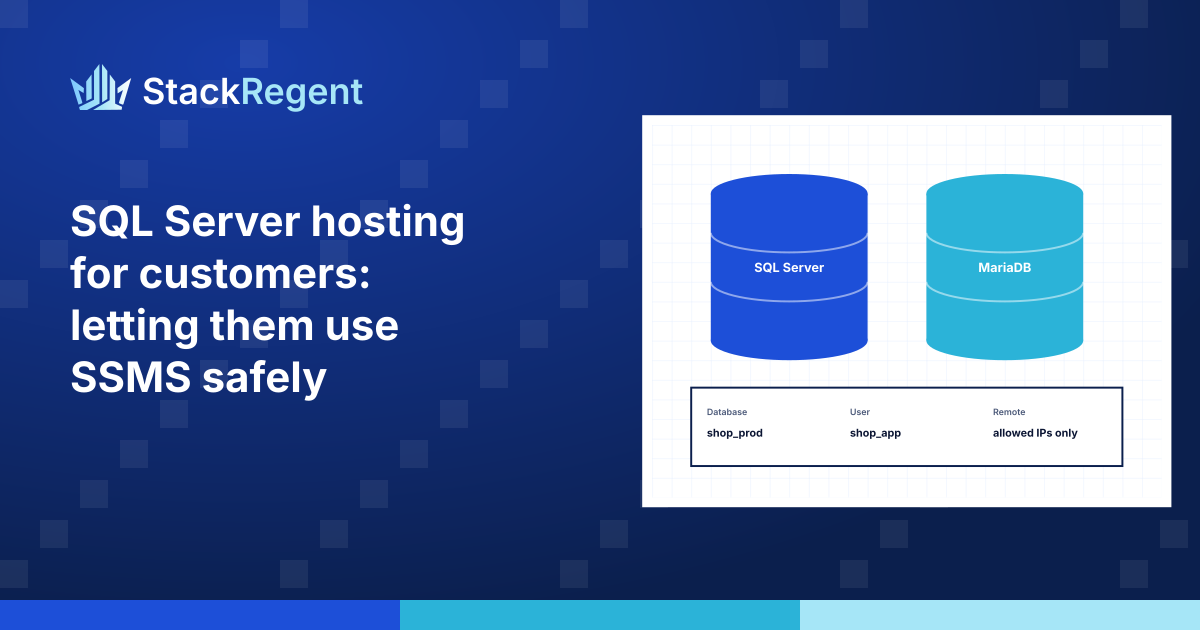
Customers who build on ASP.NET usually want a SQL Server database, and the developers among them want to open it in SQL Server Management Studio, not in a web console. That is a reasonable request. It is also where shared SQL Server hosting tends to go wrong: the instance is exposed to the internet, every login can see every database name on the server, and failed logins pile up in the error log by the thousand.
This post covers SQL Server hosting for customers in practice: how to allow remote SSMS connections, how to stop customers from seeing each other's databases, who should own a database, and what to watch with SQL Server Express.
One login per database user, SQL authentication#
Hosting customers do not have Windows accounts in your domain, so they connect with SQL Server authentication: a SQL login with a password. Create one login per database user, map it to a user in the database it needs, and give it the narrowest role that works:
- read and write:
db_datareaderanddb_datawriter, plusdb_ddladminif the application creates its own tables; - read only:
db_datareader; - never
sysadmin,securityadminor any other server role.
Mixed mode authentication must be on for the instance. Keep the sa login disabled, or at least protected with a long random password; it is the first name every scanner tries.
Opening SQL Server to remote connections#
SSMS on a customer's laptop needs to reach the instance over TCP. With SQL Server Express that takes three changes: enable the TCP/IP protocol in SQL Server Configuration Manager, give the instance a fixed port (1433 is the usual choice) instead of a dynamic one, and open that port in Windows Defender Firewall.
Opening 1433 to everyone works, but it invites a steady stream of password guessing against sa and common names. You have two ways to narrow it:
- Allow-list addresses. If your customers connect from known offices or a VPN, open 1433 only to those addresses. This is the safest option and the least convenient.
- Ban addresses that keep failing. SQL Server records failed logins (error 18456) in the Windows Application event log. A tool that watches those events and blocks the source address after a few failures removes most of the noise without blocking legitimate users.
Do both if you can. Encrypt the connection too: recent versions of SSMS encrypt by default and will refuse a self-signed certificate unless the user ticks Trust server certificate. A certificate from a public authority on the instance avoids that and protects the password in transit.
Hiding other customers' databases#
By default, any login on a SQL Server instance can see the names of all databases in Object Explorer, even ones it cannot open. On a shared server that leaks your customer list: acme_shop, lawfirm_crm, clinic_bookings. It also confuses customers, who see dozens of databases and open tickets asking why they cannot access them.
The server permission behind this is VIEW ANY DATABASE, which every login has through the public server role. Deny it:
DENY VIEW ANY DATABASE TO public;Now a login sees only master, tempdb and databases it owns. Not databases it is a user in: databases it owns. That detail is what makes this work or not.
Make the customer's login the database owner#
For a customer's main login to see its database in SSMS, that login has to be the owner:
ALTER AUTHORIZATION ON DATABASE::shop_db TO shop_user;The owner maps to dbo inside the database, so it gets full control of that database and nothing outside it. That is usually what a customer expects from "my database". A sensible rule is that the first read-write user of each database becomes its owner.
Two side effects need handling:
- A login that owns the database cannot also be a regular user in it. If
shop_useralready exists as a database user, drop that user (and move any schema it owns todbo) before you change the owner. - Other users of the same database do not see it in Object Explorer. They can still connect: in SSMS, click Options, open Connection Properties, and type the database name in Connect to database. Put that in your help pages, because the first time it happens the customer thinks the database has gone.
Schemas left behind by migrations#
Databases restored from other panels sometimes come with a schema per user, named after that user. If those schemas are empty, transfer them to dbo and the user can be dropped cleanly. If a schema holds tables, the application depends on it: leave that user and its schema as they are, and let that login connect by typing the database name.
Backups customers can use#
Customers will ask for a .bak file. A backup written by the SQL Server service account lands in a folder the customer cannot reach, so write it into their own webspace (or copy it there) and set permissions so their Windows user can download it over FTP. Restoring works the other way: the customer uploads a .bak file, and you restore it over their database, after making clear that a restore replaces the whole database.
SQL Server Express limits worth telling customers#
SQL Server Express is free, which is why most Windows hosting offers it. Its limits are real, and customers should know them before they build on it. According to Microsoft's editions page for SQL Server 2022, Express is limited to 10 GB per database, the lesser of one socket or four cores, and 1,410 MB of memory for the buffer pool per instance. A customer whose database approaches 10 GB needs a plan on an instance with a paid edition.
Because the buffer pool limit is per instance, a busy shared Express instance runs out of cache long before it runs out of disk. Watch the instance's process list for long-running queries, and do not be shy about ending one that is holding everyone else up.
How StackRegent handles SQL Server for customers#
StackRegent installs SQL Server Express as the instance SQLEXPRESS on port 1433 from Server Components, or registers SQL Server instances you already own, local or remote. Customers create databases and users from their Databases page, with Read and write, Read only or Write only access, open a database in the Web Admin console, and can back up to and restore from their webspace.
Under Tools & Settings › Database Servers, the Remote connections column has two switches for a SQL Server: Open port 1433, and Hide other clients' databases, which is on by default for the instance StackRegent installed. Hiding runs the steps above as a task: it makes each database's first read-write user its owner, denies VIEW ANY DATABASE, passes empty per-user schemas to dbo, and leaves users whose schemas hold tables alone. IP Address Banning has a Microsoft SQL Server source that blocks addresses that keep failing to log in, and Firewall can limit the port to listed addresses. The Database Process List lets you kill a runaway query.
The administrator's databases guide covers the settings, and the customer's databases guide explains the SSMS connection, including the Connect to database step, in words you can send to customers. The databases feature page has an overview, and the free trial lets you try it.