A SQL Server hosting control panel that also runs MariaDB#
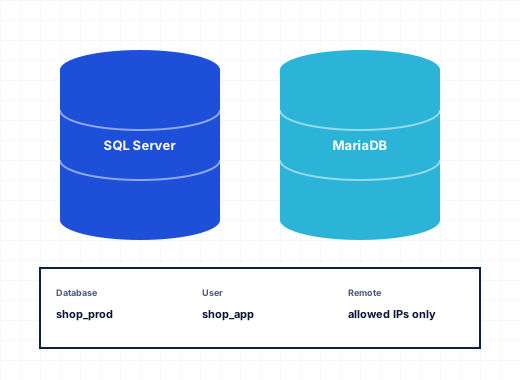
ASP.NET applications usually expect Microsoft SQL Server, and PHP applications such as WordPress, Joomla or Laravel expect MySQL. StackRegent manages both side by side: Microsoft SQL Server Express and MariaDB, the MySQL-compatible server. A subscription can hold databases of both types, as far as its plan allows, and each database type has its own count on the plan's Resources tab.
The administrator installs either server under Tools & Settings › Server Components. SQL Server Express runs as the named instance SQLEXPRESS on port 1433. MariaDB is part of the default install, together with phpMyAdmin. Locally installed servers register themselves under Tools & Settings › Database Servers, which lists each server with its type, version, status and number of databases.
The panel's own data lives in a separate private MariaDB instance on 127.0.0.1:8306. Customer databases never share a server process with the panel's configuration.
Local and remote database servers#
Database load does not have to stay on the web server. Click Add remote server, choose MariaDB or SQL Server, and enter the host, port and an administrator login that may create databases and logins. For a SQL Server with a self-signed certificate, tick Trust the server's own certificate. Test and add confirms the connection before the server is saved.
One server of each type is the default for new databases. A service plan can name a different server, and plans with Database server selection let customers pick one when there are several. Removing a server from the list only makes StackRegent forget it; the server and its data are not touched. This lets you put SQL Server Standard or a larger MariaDB machine behind the panel when SQL Server Express is no longer enough, since Express carries Microsoft's own limits on database size and memory.
Databases and users for each subscription#
Customers open Databases from Home or the subscription page. To create one, click Add database, choose the type and, if allowed, the server, then enter a name. A prefix can be added automatically, set by the administrator under Database Hosting Preferences: none, the subscription's system user name (for example shop_), the subscription ID or fixed text. Prefixes keep names unique across customers on a shared server.
The same dialog creates a database user. Access is Read and write, Read only or Write only, and a user can be given access to one database or to every database of that type in the subscription. The Users tab lists every user with its server, database, access and remote access, and users can be added, changed or removed later. Removing a user stops applications that log in with it but leaves the data in place.
Each database row offers:
| Action | MariaDB | SQL Server |
|---|---|---|
| Export | Export dump | Back up to the webspace |
| Import | Import dump (.sql, .gz or .zip) | Restore from a backup (.bak or .zip) |
| Check | Yes | Yes |
| Repair | Repair tables | Not applicable |
| Copy | New database on the same server with all tables and data | Same |
Exports go to /private/db_dumps in the webspace, outside the website's document root, and the import dialog lists them newest first. Customers can download a .bak from there, or upload a .bak from their own machine with File Manager and restore it, which is the usual way to bring an existing SQL Server database to a new host.
Remote access from SQL Server Management Studio#
Developers want to connect from SQL Server Management Studio, HeidiSQL or their IDE rather than through a browser. On Database Servers, the administrator ticks Open port N for a local server to accept remote connections. Customers then connect with their database login, using the address the website's Connection Info tool shows.
On a shared SQL Server this raises a privacy question: by default, SSMS lists every database on the instance, including other customers' database names. StackRegent's Hide other clients' databases option, on by default for the SQL Server it installs, fixes that. It makes each database's first read-write user its owner and denies VIEW ANY DATABASE to everyone, so Object Explorer shows a customer only the databases their login owns. Other users of a database still connect by typing its name under Options › Connection Properties › Connect to database.
For MariaDB, remote access is set per user: This server only, Any host, or These hosts, a list such as 203.0.113.5, 192.168.1.%. The server-wide default is in Database Hosting Preferences. Local connections from the web server always work.
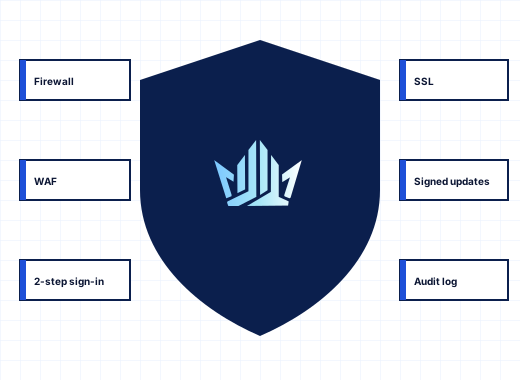
Opening database ports to the internet invites password guessing, so two protections apply. IP Address Banning has sources for Microsoft SQL Server (Application event 18456) and MariaDB (Access denied in its error log) and bans addresses that keep failing. The firewall can limit each database port to listed addresses. Both are covered on the security page.
SQL console and phpMyAdmin single sign-on#
Not every customer has a database client installed. Each database row has SQL (MariaDB) or Web Admin (SQL Server), a console in the panel that connects as the database's user, lists the tables, shows a table's first rows with one click, and runs one statement at a time with up to 1,000 result rows. Because it uses the database user's own rights, a read-only user stays read-only in the console.
For MariaDB, the phpMyAdmin button opens phpMyAdmin in a new tab, already signed in as the database user, so nobody types or stores a database password in the browser. phpMyAdmin runs on its own HTTPS site on port 9445, separate from customer websites. The button needs at least one user on the database.
ODBC data sources#
Some older ASP and .NET applications connect through ODBC. Tools & Settings › ODBC Data Sources holds 64-bit system DSNs every website can use, and the subscription's ODBC Data Sources tab lets customers add their own, up to the number their plan allows. A DSN takes a name, driver and driver keywords such as Server and Database. Passwords are not stored in data sources, and Test tries a connection with a user and password before you rely on it.
Database backups and migration#
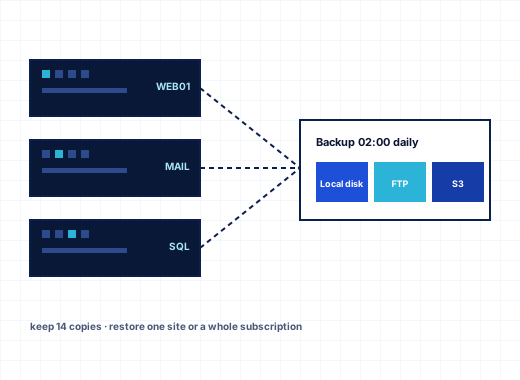
Databases are part of the Backup Manager at every level. A server, customer or subscription backup can include databases along with configuration, files and mail, on a schedule that keeps a set number of copies, stored locally or on FTP, SFTP or S3-compatible storage. A restore picks the subscriptions and the content types to bring back, so you can restore only the databases of a subscription without touching its files or mail. See backups.
When accounts move from Plesk for Windows or another StackRegent server, databases travel together with their users, and the pre-migration checks flag a subscription whose SQL Server or MariaDB databases have no matching server on the new machine. Before the DNS switch, the transfer can run again to copy the latest data. The migration page explains the steps.
Watching database load#
Tools & Settings › Database Process List shows the connections and running queries of a chosen server, refreshed every 10 seconds. A query that holds a lock or uses too much CPU can be ended with Kill. If a server shows Offline on the Database Servers page, the reason is shown under its badge, and Diagnose & Repair checks the database services along with the rest of the server.
To try the SQL Server hosting control panel with your own applications, start the 10-day trial and add SQL Server Express from Server Components after installation.
Frequently asked questions
Which SQL Server edition does StackRegent install?
It installs Microsoft SQL Server Express as the instance SQLEXPRESS on port 1433. You can also add a remote SQL Server of another edition under Database Servers and make it the default for new databases.
Can customers connect to their database with SQL Server Management Studio?
Yes, once the administrator opens the SQL Server port under Database Servers. Customers use SQL Server Authentication with their database login and the address from the website's Connection Info tool, and with Hide other clients' databases on, they see only their own databases.
Can customers see other customers' databases on a shared SQL Server?
Not when Hide other clients' databases is on, which is the default for the SQL Server StackRegent installs. The panel denies VIEW ANY DATABASE and makes each customer the owner of their databases, so Object Explorer lists only those.
How do I restore a SQL Server .bak file?
Upload the .bak, or a .zip holding it, to the webspace with File Manager, then choose Restore from a backup in the database's menu and pick the file. A restore replaces the whole database.
Is phpMyAdmin included?
Yes. phpMyAdmin is installed by default with MariaDB and opens from each database's row already signed in as the database user. It runs on its own HTTPS site on port 9445.
Can I use MySQL instead of MariaDB?
StackRegent installs and manages MariaDB, which is compatible with MySQL clients and applications. Applications connect with the usual MySQL drivers, for example PDO with a mysql connection string on port 3306.