Three ways to move accounts to StackRegent#
The Migration & Transfer Manager under Tools & Settings (in the Tools & Resources group) moves subscriptions to the server it runs on. It covers three sources:
- Plesk for Windows, live, through a small migration agent or the StackRegent Migrator extension installed in Plesk.
- Another StackRegent server, live, using a REST API key created on the old server.
- A Plesk backup file, from Plesk for Windows (
backup_info_….xml.zip) or Plesk for Linux (.tar), when the two servers cannot reach each other.
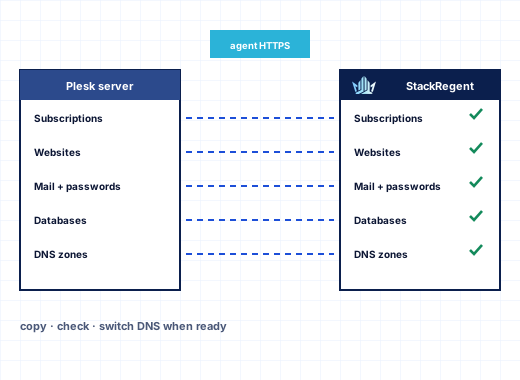
In the live modes the new server connects to the old one over HTTPS. The old server backs up one subscription, the new server downloads and restores it, and the next subscription is backed up while the current one restores. The old server is not changed at any point.
What moves when you migrate from Plesk to StackRegent#
A migration carries the business structure and the content together, so you do not rebuild customers by hand:
- customers, resellers and service plans
- domains and website files
- databases with their database users
- mail accounts with their messages
- FTP accounts and scheduled tasks
- PHP and ASP.NET settings of each website
Configuration always moves. For content you choose website files, databases and mail messages, which lets you do a fast configuration-only pass first if you want. You can also tick Also every service plan, reseller and customer, including those without these subscriptions to bring over accounts that have no subscriptions yet.
Customers keep their passwords. For Plesk, the agent reads the passwords Plesk encrypted, so panel, FTP and mailbox logins work on the new server with the credentials customers already use. That removes the round of password-reset tickets that usually follows a server move.
On arrival, each subscription becomes a normal StackRegent subscription: its own Windows user, its own IIS application pool, a private webspace and the resource limits of its service plan. Isolation applies from the first minute.
Before you start#
Install StackRegent on the new Windows Server 2016, 2019, 2022 or 2025 machine and add the components the old sites use: the PHP versions they need, SQL Server Express if any subscription has SQL Server databases, MariaDB for MySQL databases, and the ASP.NET Core Hosting Bundle versions your .NET applications target. The components page lists what can be installed. Make sure the websites drive has room for the subscriptions you plan to move; the migration page warns you when it does not.
How a migration from Plesk for Windows runs#
Step 1: Start the agent on the Plesk server#
Copy stackregent.exe from the bin folder of the StackRegent package to the Plesk server and run stackregent.exe migration-agent --allow NEW-SERVER-IP in an administrator command prompt. It prints the old-server address (port 9445 by default) and an API key. Alternatively, install the StackRegent Migrator extension in Plesk, enter the new server's IP address and click Start; the page shows the same address and key, and opens the port in Windows Firewall while the agent runs. Neither option changes anything in Plesk. For another StackRegent server, create a key under Tools & Settings › Remote API (REST) instead.
Step 2: Connect from the new server#
In Migration & Transfer Manager, click Connect to a Server, enter the old server's address and paste the API key. The Plesk agent uses a self-signed certificate, so tick Accept an untrusted certificate; the agent prints the certificate's SHA-256 fingerprint so you can compare it.
Step 3: Review the checks#
The page lists every subscription on the old server with its customer, plan, PHP versions, ASP.NET use, databases, mailboxes and size, and checks each against the new server. A domain that already exists here, or databases with no matching database server, block that subscription until you fix the cause. A missing PHP version is a warning: install it, or the sites run on the nearest installed version.
Step 4: Migrate the subscriptions#
Tick the subscriptions, click Migrate, choose the content, and click Start. Each one moves through Waiting, Backing up, Copying and Restoring to Moved or Failed with a message, and Follow the task opens the full log. Transfers resume after an interruption instead of starting again, and Select failed lets you retry only what went wrong.
Step 5: Test each website before DNS#
Open each site on the new server before any domain points there: add a hosts-file entry on your computer, or use Website Preview, which serves the site on its own port. Check logins, forms, uploads, mail sending and database connections, including connection strings in web.config.
Step 6: Refresh the content and switch DNS#
Shortly before the switch, use Select moved and migrate those subscriptions again to copy the newest files, databases and mail. Then change the domains' records or name servers to the new server. When everything has moved, click Disconnect: the new server forgets the old one and its key, and the moved subscriptions stay.
Moving from a Plesk backup file instead#
If the servers cannot reach each other, back up in Plesk's Backup Manager with everything selected, download the file, and click Add a Plesk Backup in the Migration & Transfer Manager. Files over 2 GB are copied to the server first and added by path. Then click Restore and pick the subscriptions. If Plesk encrypted a password with its own key, the account gets a new password, and the restore task lists those accounts. Setting a backup password in Plesk before backing up lets Plesk include passwords in readable form.
Going back is possible too#
A migration should never be a one-way door. A password-protected StackRegent backup has a For Plesk button that writes it in Plesk for Windows format, with the customer, subscriptions, domains, files, PHP and ASP.NET versions, virtual directories, databases and mail. Scheduled tasks and SSL certificates are not included in that export.
Plan the switch with us#
Run a test with one real subscription during the 10-day free trial, which includes the full Migration & Transfer Manager. The migration guide has the reference details, and if you want to talk through a larger move, contact us with the source server's details.
Plesk and cPanel are trademarks of WebPros International GmbH; other names belong to their owners.
Frequently asked questions
How do I migrate from Plesk to StackRegent?
Start the migration agent or the StackRegent Migrator extension on the Plesk for Windows server, connect to it from the Migration & Transfer Manager with the key it prints, select the subscriptions and click Migrate. Test each site, migrate again to refresh, then switch DNS.
Does the migration change anything on my Plesk server?
No. The agent only reads data and backs up one subscription at a time for the new server to download. Sites and mail keep running on Plesk until you switch DNS.
Do customers keep their passwords after a Plesk migration?
Yes, in a live migration the agent reads the passwords Plesk encrypted. From a Plesk backup file, accounts whose passwords Plesk encrypted with its own key get new ones, listed in the restore task.
Can I migrate from Plesk for Linux?
Not live. You can restore a Plesk for Linux .tar backup into StackRegent, which works well for PHP sites with MySQL databases that run on Windows.
What happens if a transfer is interrupted?
It resumes rather than starting over. Subscriptions that fail show a message; fix the cause and use Select failed to migrate them again.
Can StackRegent migrate from cPanel or SolidCP?
No. Its migration tools read other StackRegent servers, Plesk for Windows and Plesk backup files.