How the IIS hosting control panel organizes websites#
Every website belongs to a subscription. A subscription has one main domain and the extra domains, subdomains and domain aliases its service plan allows. Each domain and subdomain is its own IIS site with its own document root inside the subscription's webspace, while an alias is another name for an existing site that can carry web traffic, mail or both.
The administrator sees every website under Hosting Services › Domains, with its subscription, subscriber, disk use, traffic and state. Customers see their own under Websites & Domains. To add one, open the subscription and click Add Domain, Add Subdomain or Add Domain Alias on the Websites and domains card. IIS is configured in the background as a task, so the page stays responsive while bindings, folders and permissions are created. For an alias you choose whether to synchronize its DNS zone with the primary domain, whether it serves mail and web, and whether it redirects with HTTP 301.
Removing a website deletes it together with its subdomains, aliases and document root, so the server is not left with orphaned IIS sites or folders. The main domain goes only with its subscription.
Application pools and Windows users per subscription#
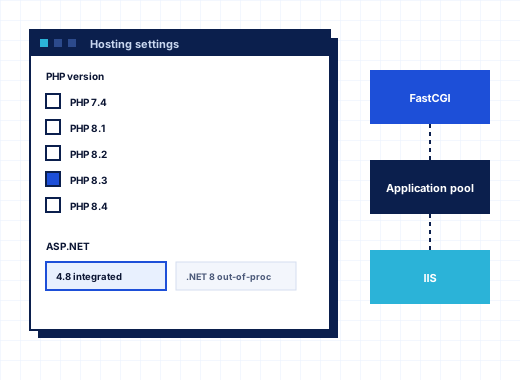
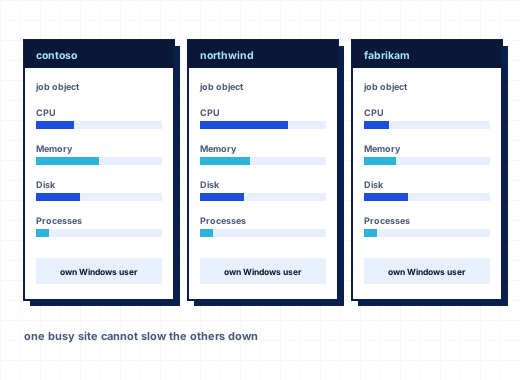
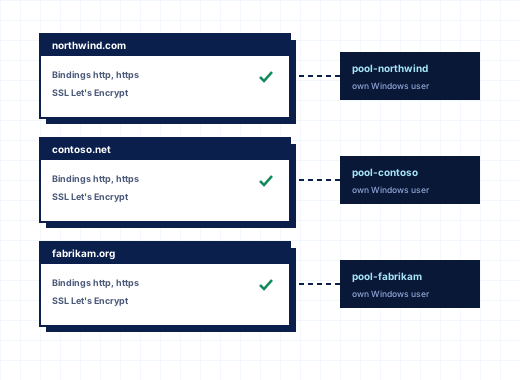
Each subscription runs in its own IIS application pool under its own Windows user. The pool's identity is the subscription's system user, anonymous requests run as that user, and the webspace is closed to every other account. One customer's runaway script or memory leak recycles their pool, not the neighbors'.
Pool settings come from the Performance tab of the service plan:
- Dedicated application pool for each website, so a large subscription can separate its sites as well
- Enable 32-bit applications and Load the user profile for older .NET code
- Maximum worker processes, Idle timeout and Idle timeout action
- Maximum CPU usage, CPU limit action and CPU limit interval
- recycling at regular intervals, after a number of requests, or at a virtual or private memory size
The administrator watches all pools under Tools & Settings › IIS Application Pools, which refreshes every 10 seconds and shows each pool's state, .NET CLR version, websites and worker process IDs, with Recycle, Stop and Start. Customers whose plan allows hosting options can lower these values for their subscription, never raise them above the plan. On top of the pool, CPU, memory, disk I/O and process caps per subscription are described on resource limits and isolation.
Hosting settings and IIS settings per site#
Click Manage next to a website to open its page. The header shows the Windows user the site runs as and whether IIS is running it, with Open, Preview and Re-apply settings, which writes every setting to IIS again when a site behaves differently from what the panel shows.
Hosting Settings covers the basics: the document root (for example httpdocs or httpdocs/public), the preferred domain with a 301 redirect from the other name, SSL/TLS support with a permanent HTTP-to-HTTPS redirect, PHP and ASP.NET support, web statistics with Webalizer or AWStats, and Web Deploy publishing. A website starts with its subscription's values; any value changed on the site is marked, and Use subscription values puts it back.
IIS Settings is where most support tickets on a Windows server end up:
| Group | What the customer can set |
|---|---|
| Directory browsing | Allow browsing folders without a default document, and which columns to show |
| Documents and errors | Default documents in search order, and who sees detailed error pages |
| Logging and compression | Log visits, compress static files, compress dynamic responses |
| Requests | Maximum request size, custom response headers, additional MIME types |
| HTTPS and caching | HSTS with lifetime and subdomains, browser cache lifetime of static files |
| Authentication | Windows authentication in addition to anonymous access |
| Request flood protection | Block addresses that send too many concurrent or repeated requests |
| Access restrictions | Allow all except, or deny all except, a list of IP addresses and CIDR networks |
Optimize Website adds a simpler choice between no compression, static compression and compression of all content, sets browser caching, and links to PageSpeed to measure the result. Other tools on the website page cover password-protected directories, hotlink protection, web users with personal pages at /~name/, and the WAF log of the ModSecurity firewall.
SSL/TLS certificates and Let's Encrypt#
Each website has an SSL/TLS Certificates tool. On its Let's Encrypt card the customer ticks the names to include, such as example.com and www.example.com, and clicks Get a free certificate. Each name must already resolve to the server. Certificates renew automatically 30 days before they expire, and plans with Keep websites secured with free SSL/TLS certificates issue them without anyone clicking, once DNS points at the server.
For a bought certificate, customers upload PEM files or a PFX, or create a CSR in the panel and add the issued certificate later. A self-signed certificate can be made for tests. On Windows Server 2022 and 2025, websites also get TLS 1.3, and HTTP/3 over QUIC is available but off by default. Wildcard Let's Encrypt certificates are not available yet.
Virtual directories and IIS applications#
A virtual directory publishes a folder of the webspace under a path of the site, for example /images or /app. In Virtual Directories, click Add Virtual Directory, enter the path and the folder, and choose the permissions: read only; read and run scripts; read, scripts and executables; or no access. Tick Create as an IIS application when the folder needs its own ASP.NET application domain; it stays in the subscription's pool. You can also turn off anonymous access to require a Windows login, set its own default documents and MIME types, and override directory browsing. Removing a virtual directory leaves its folder in place.
Deploying with Web Deploy and Git#
Web Deploy 4.0 runs on port 8172 and publishes as the subscription's system user. On the website page, Web Deploy shows the server, site name, user name and service URL, and Download publish settings gives a file that Visual Studio imports under Publish › Import profile, with a Web Deploy and an FTP profile inside. The plan's Web Deploy publishing setting turns this on or off per subscription.
The Git tool connects a website to a repository in two ways:
- A remote repository on GitHub, GitLab, Bitbucket or any server, public or private with an access token or an SSH deploy key. The panel shows a webhook address so every push is pulled automatically.
- Pushes to this server, where the panel hosts the repository and you add it as a remote, for example
git remote add live <push address>, then push.
Deployment can run after every pull or push, only when you click Deploy now, or not at all. Deployment actions run commands after each deployment, such as php artisan migrate --force. Git over SSH uses the OpenSSH client built into Windows Server 2019 and later.
Website copying, importing and preview before DNS#
Website Copying copies a site's files to another website on the same server or to an FTP or SFTP server, with a choice to keep, replace or clear what is already in the target. It is the quick way to clone a live site into a staging subdomain.
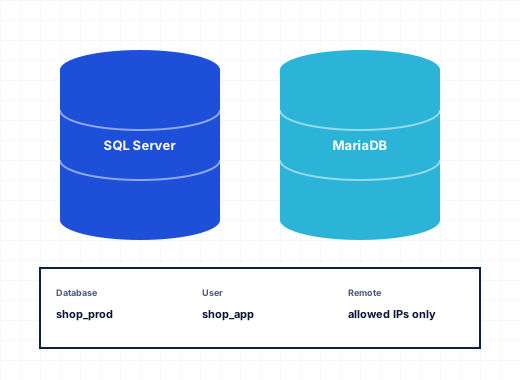
Website Importing pulls a site from another host. Enter the old host's FTP or SFTP details and the folder (for example public_html), then add each MySQL or MariaDB database with its old server, name and login. The panel copies the files, creates the target database if it does not exist and imports the data, as long as the old host accepts remote database connections. For whole accounts from Plesk for Windows, use the migration tools instead.
Website Preview lets anyone open a site hosted on this server before the domain's DNS points at it, at an address like https://SERVER:9444/example.com/. The administrator switches it on under Tools & Settings › Website Preview, and every website page then shows a Preview button. It is the standard way to check a moved site before the DNS change.
Logs and failed request tracing#
Logs shows the IIS access logs of the subscription's websites and the PHP error log. Choose how many lines to show, from the last 50 to the last 5,000, filter them, or tick Follow to refresh every 5 seconds. Files can be downloaded or removed.
Failed Request Tracing switches on IIS tracing for status codes you choose (the default is 400-999) and, optionally, for requests slower than a number of seconds. Each trace is listed with time, URL, status and duration, and all traces can be downloaded as one ZIP. It answers the question "why does this page return 500" without anyone opening the server's log folders.
To try the IIS hosting control panel on your own server, start the 10-day trial. Other areas are listed on the features overview.
Frequently asked questions
Does every website get its own IIS application pool?
Every subscription gets its own application pool under its own Windows user. If the plan turns on Dedicated application pool for each website, each site in the subscription gets a separate pool as well, still running as the subscription's user.
Can customers issue Let's Encrypt certificates themselves?
Yes. In the website's SSL/TLS Certificates tool they tick the names and click Get a free certificate, as long as those names already point at the server. Certificates renew automatically, and wildcard certificates are not available yet.
How do I publish from Visual Studio to a StackRegent server?
Open the website, click Web Deploy and download the publish settings. Import the file in Visual Studio under Publish, Import profile, enter the subscription's system user password, and publish. Web Deploy listens on port 8172.
Can I test a migrated website before changing DNS?
Yes. With Website Preview switched on by the administrator, every website page has a Preview button that opens the site from this server at an address on port 9444. You can also point the domain at the server in your computer's hosts file.
Can customers block IP addresses for their own site?
Yes. IIS Settings has Access restrictions, where the default is either allow all except a list or deny all except a list, with one IP address or CIDR network per line. Request flood protection can also block addresses that send too many requests.
Is HTTP/3 supported for IIS sites?
On Windows Server 2022 and 2025, HTTP/3 over QUIC is available but switched off by default, and websites can use TLS 1.3. HTTP/2 works on all supported versions from Windows Server 2016 on.