· StackRegent Team · 6 min read
Moving from Plesk for Windows to StackRegent, step by step
A practical walk-through of a server move from Plesk for Windows to StackRegent, from inventory and a pilot subscription to the final re-sync and DNS switch, with the decisions you will face along the way.
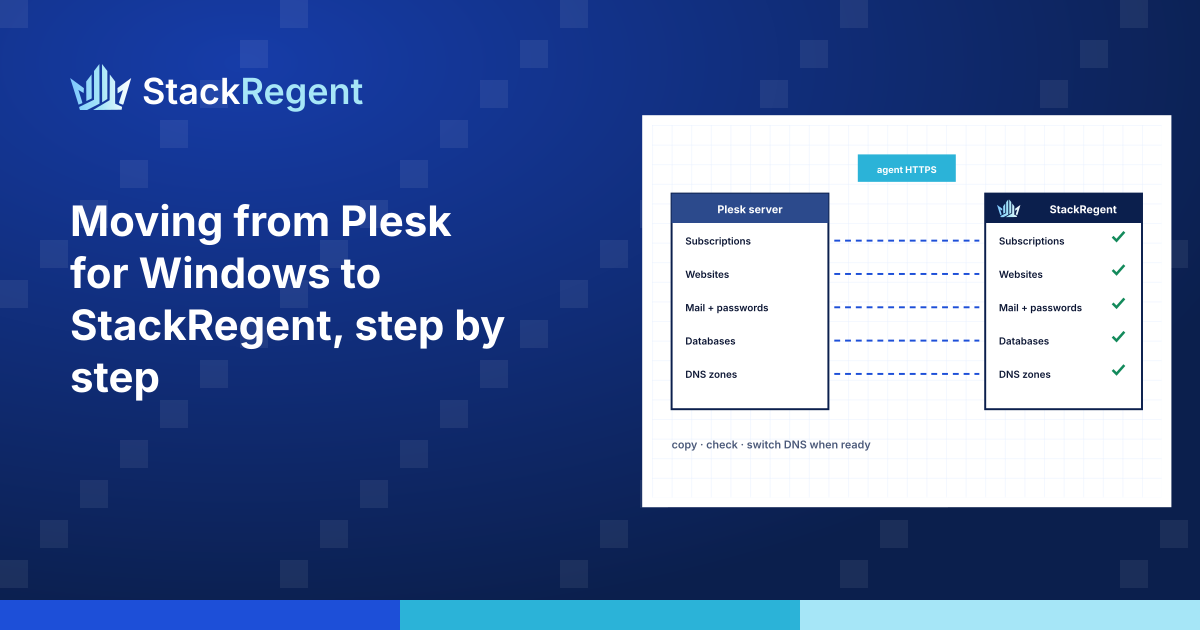
Moving a shared Windows server from Plesk to StackRegent is not difficult, but it has a lot of small parts, and most of the risk lives in the order you do them. This post walks through a move the way we would plan it ourselves: one old server running Plesk for Windows, one new server with StackRegent, and a few dozen subscriptions that must keep working throughout.
Nothing here is specific to one customer. It is the sequence we recommend, with the decisions you will meet along the way. The migration guide has the reference for every screen.
Before you start: decide what "done" means#
Write down three things before you touch either server:
- What moves. All subscriptions, or only some? Resellers and their customers too? Service plans you no longer sell?
- What must not break. Usually the busy shops, the mail-heavy customers, and the ASP.NET applications with connection strings nobody remembers writing.
- When DNS switches. Pick a quiet window. Lower the TTL on the affected DNS records to five minutes at least a day before, so the switch takes effect quickly and can be reversed quickly.
Step 1: take an inventory of the old server#
Go through the Plesk server and note, per subscription: PHP versions in use, ASP.NET and .NET versions, MySQL and SQL Server databases, number of mailboxes and their total size, and anything unusual such as scheduled tasks, custom IIS settings, virtual directories or SSL certificates bought from a commercial authority.
This inventory answers the most important question early: what does the new server need installed before the first subscription can land on it?
Step 2: prepare the new server#
Install StackRegent on a fresh Windows Server, ideally 2022 or 2025. The one-line installer in an elevated PowerShell needs only your license key; the install guide covers it. Then, from your inventory:
- Install every PHP version the old server uses under Tools & Settings › PHP Settings. A subscription whose version is missing runs on the nearest installed version, which is how subtle breakage starts.
- Install SQL Server Express under Server Components if any subscription has SQL Server databases, or register the SQL Server you already run. MariaDB takes the MySQL databases.
- Install the .NET Framework and the ASP.NET Core Hosting Bundle versions your customers' applications use.
- Check the disk. The migration warns you when the subscriptions need more space than the websites drive has free, but it is better to know before.
Create service plans that match your Plesk plans, or let the migration bring them across (more on that below).
Step 3: choose how to connect to Plesk#
StackRegent connects to the old server over HTTPS and copies subscriptions directly, one at a time. For Plesk for Windows there are two ways to give it something to connect to, and neither changes anything in Plesk:
- The migration agent. Copy
stackregent.exefrom thebinfolder of the StackRegent package to the Plesk server and runstackregent.exe migration-agent --allow NEW-SERVER-IPin an administrator command prompt. It prints the address and an API key to enter on the new server. Keep the window open while you migrate. - The StackRegent Migrator extension. If you prefer working in the Plesk interface, install the extension, enter the new server's IP address and click Start. It shows the same address and key, and Stop the agent ends it.
Both use a self-signed certificate and print its SHA-256 fingerprint. Compare it with what the new server sees before you tick Accept an untrusted certificate.
If the two servers cannot reach each other at all, fall back to Plesk backup files: back up in Plesk with everything selected, add the .xml.zip on the new server with Add a Plesk Backup, and restore from there, choosing the subscriptions to restore. It is slower and less convenient for a big server, but it works.
Step 4: read the checks before you move anything#
In Tools & Settings › Migration & Transfer Manager, click Connect to a Server and enter the address and key. The page lists every subscription with its customer, plan, PHP versions, databases, mailboxes and size, and checks each one against the new server. Errors, such as a domain that already exists here or a database type with no server, block a subscription. Warnings, such as a missing PHP version, do not, but they tell you what will behave differently. Fix what you can now; it is much easier than fixing it after DNS has moved.
Step 5: move one pilot subscription#
Pick a subscription that is representative but not critical, ideally one with a website, a database and a few mailboxes. Migrate it alone. Choose Website files, Databases and Mail messages under Content; configuration such as domains, PHP and ASP.NET settings, database and mail accounts, FTP accounts and scheduled tasks always moves.
Then test it properly without touching DNS. Add a line to the hosts file on your own computer that points the domain at the new server, or use Website Preview, and check:
- the home page and a few inner pages, including anything behind a login;
- forms that write to the database;
- a mailbox in webmail and in a mail client, sending and receiving;
- FTP with the customer's existing password.
Passwords should keep working: the agent reads the passwords Plesk encrypted, so customers sign in to the new panel, FTP and mail with the ones they already have.
Step 6: move the rest in batches#
With the pilot working, migrate the remaining subscriptions in batches you can watch. Each one goes through Backing up, Copying and Restoring, and ends as Moved or Failed with a message. Transfers can be resumed, and the next subscription is backed up while the current one is restored, so a batch moves at a steady pace.
If you want every service plan, reseller and customer to exist on the new server, including those with no subscriptions, tick the option under Accounts on one of the runs. That is the easy way to bring plans and reseller structures across.
When a subscription fails, read its message and the task log, fix the cause on the new server, and use Select failed to run it again.
Step 7: re-sync, then switch DNS#
The first copy may be hours or days old by the time you switch. Shortly before the DNS window, use Select moved and migrate all moved subscriptions again. This copies the latest files, databases and mail.
Then switch DNS: change the A records, or point the name servers at the new server if StackRegent will serve DNS for these domains. With the TTL you lowered in advance, traffic moves within minutes. Leave the old server running for a few days so mail delivered to it by slow resolvers can be picked up with one more re-sync.
Step 8: clean up#
When everything has moved and settled, click Disconnect in Migration & Transfer Manager so the new server forgets the old one and its key, and stop the migration agent or the extension on the Plesk server. Raise DNS TTLs back to normal. Issue Let's Encrypt certificates on the new server for sites that had them, and install any commercial certificates you noted in your inventory. Then decommission the old server on your own schedule.
What to tell customers#
Most customers notice nothing apart from a new panel. Tell them a few days ahead: the date of the switch, the new panel address, that their passwords stay the same, and that webmail is at webmail. followed by their domain. The customer guide is a good link to include.
If you would like help planning a larger move, see the migration page, use the migration form or write to sales@stackregent.com. The free trial is enough to run a pilot subscription before you commit, and the comparison with Plesk covers the differences you will notice day to day.
Plesk and cPanel are trademarks of WebPros International GmbH; other names belong to their owners.