· StackRegent Team · 7 min read
Isolating websites on IIS: app pools, Windows users and job objects
How to keep hosting accounts apart on a shared IIS server with an application pool and Windows user per subscription, tight NTFS permissions, and job objects that cap CPU, memory, disk I/O and processes.
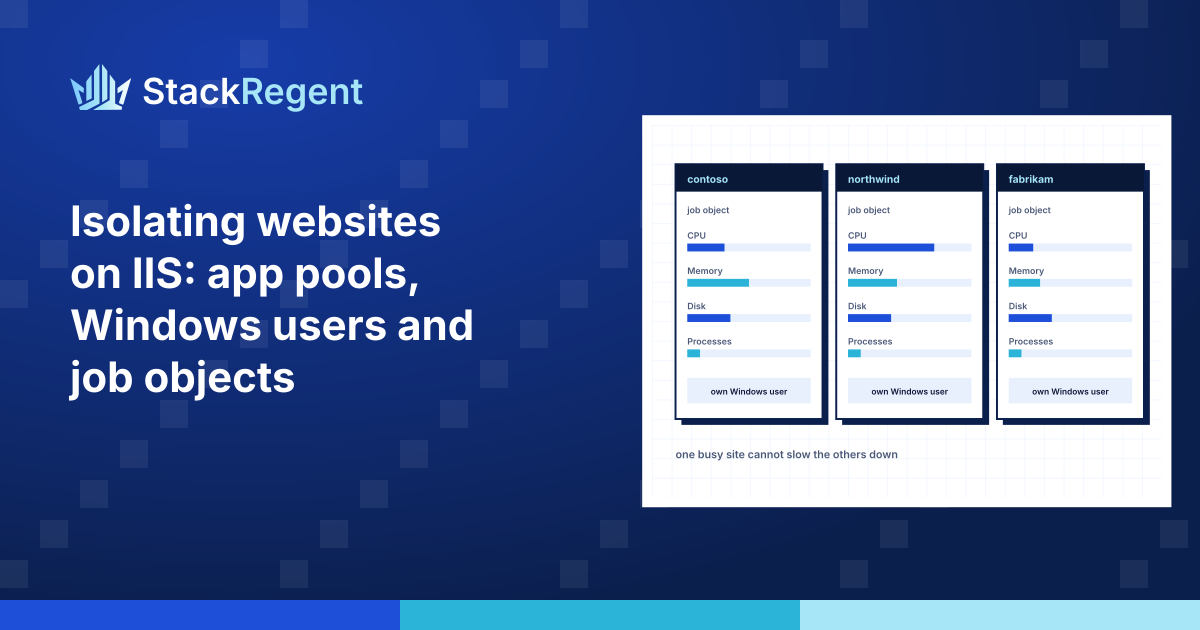
Isolating websites on IIS is the job that decides whether a shared Windows server is a business or a liability. On a server with fifty customers, one of them will eventually run an outdated plugin, upload a web shell or write a loop that never ends. Isolation decides whether that problem stays inside one account or spreads to the other forty-nine.
This post walks through the three layers that matter on IIS: who a site runs as, what that identity can touch on disk, and how much of the machine it may use. The commands are plain Windows and IIS tools, so you can apply them by hand on any server. At the end we note how StackRegent sets the same things up for every subscription.
Layer 1: an application pool and a Windows user per account#
IIS runs site code in worker processes (w3wp.exe), one or more per application pool. Whatever identity the pool runs as is the identity your customers' code runs as. If two sites share a pool, or two pools share an identity, they can read each other's files, and isolation is gone before you start.
The default ApplicationPoolIdentity gives each pool a virtual account named IIS AppPool\<pool name>. That is fine for a single-tenant server. For hosting, a real local Windows user per account is easier to work with, because the same user can own the files, run scheduled tasks, connect over FTP and be the target of NTFS quotas.
Create the user and keep it out of Administrators, Remote Desktop Users and any other privileged group:
$pw = Read-Host -AsSecureString "Password"
New-LocalUser -Name "sub_example" -Password $pw -PasswordNeverExpires -UserMayNotChangePasswordThen point the pool at it:
%windir%\system32\inetsrv\appcmd set apppool "example.com" /processModel.identityType:SpecificUser /processModel.userName:sub_example /processModel.password:*****Make anonymous requests run as the pool user#
This step is often missed. IIS anonymous authentication has its own identity, and by default it is IUSR, a single account shared by every site on the server. If a site's files are readable by IUSR, they are readable by every other site's anonymous requests too. Set anonymous authentication to use the application pool identity instead:
%windir%\system32\inetsrv\appcmd set config "example.com" -section:system.webServer/security/authentication/anonymousAuthentication /userName:"" /commit:apphostAn empty user name means "the pool identity". Now every request to the site, authenticated or not, runs as sub_example.
One pool per site or per account#
One pool per account is the minimum. A pool per website inside an account costs more memory but means a crash or recycle on one site does not touch the others, and you can give a site its own .NET CLR version or 32-bit setting. Both work as long as every pool of the account runs as the account's user.
Layer 2: NTFS permissions that say no#
With a dedicated identity, NTFS does the actual separation. Each account's webspace should be readable only by its own user, SYSTEM and Administrators:
icacls D:\vhosts\example.com /inheritance:r /grant:r "SYSTEM:(OI)(CI)F" "Administrators:(OI)(CI)F" "sub_example:(OI)(CI)M"/inheritance:r removes inherited entries, which is where Users and Everyone usually sneak in. Treat the folder that holds all webspaces the same way, without granting the account users anything there, so one account cannot list its neighbors. Each user only needs to pass through that folder to its own, and the "bypass traverse checking" right that Windows gives every user by default covers that.
PHP, temp files and sessions#
PHP under IIS runs through FastCGI, and the php-cgi.exe processes run as the pool identity. That is what you want, but check where PHP writes. If upload_tmp_dir and session.save_path point at the shared C:\Windows\Temp, sessions from one site can be read by another. Give each account its own tmp folder inside its webspace and a php.ini per site (IIS lets you set PHPRC per FastCGI application), and make sure customers cannot edit that file if it holds settings such as open_basedir that you rely on.
Watch out for junctions and hard links#
A user who can create a junction inside their own folder can point it at someone else's folder or at a system file. If an administrative tool later follows that link while copying, deleting or resetting permissions, it does the work with administrator rights on the target. Any script you run across customer folders should skip reparse points (Get-ChildItem -Attributes !ReparsePoint) and treat hard links with suspicion.
Layer 3: job objects for CPU, memory, disk and processes#
Permissions stop one account from reading another's data. They do not stop it from eating the whole CPU. IIS has a per-pool CPU limit (cpu.limit with the Throttle action), but it covers only the worker processes of that pool. PHP processes, scheduled tasks and anything else the account starts are outside it.
Windows has a better tool for this: the job object. A job is a kernel object that groups processes and applies limits to all of them together. Child processes started inside a job belong to it automatically, so a script that spawns more processes does not escape. The limits that matter for hosting are:
| Limit | Job object setting | What happens at the limit |
|---|---|---|
| CPU | CPU rate control with a hard cap, set in hundredths of a percent of all processors | The processes are scheduled less often; the site gets slower, not broken |
| Memory | Job memory limit: the committed memory of all processes together | Allocations fail; PHP returns HTTP 500 |
| Disk I/O | I/O rate control: maximum bandwidth and operations per second | Reads and writes are throttled |
| Processes | Active process limit | New processes fail to start until others exit |
I/O rate control is available from Windows Server 2016 on, which is one reason that version is a sensible floor for a Windows hosting panel. Nested jobs have been allowed since Windows Server 2012, but a process that some other tool already put in a job can be hard to move, so check that your processes actually joined.
Job objects also do the accounting: total CPU time, peak memory, I/O bytes. That gives you usage per account almost for free, which is exactly what you need to answer "which customer is slowing the server down".
Getting processes into the job#
You create a job with CreateJobObject, set its limits with SetInformationJobObject and SetIoRateControlInformationJobObject, and add processes with AssignProcessToJobObject. The catch is that IIS starts worker processes itself, so there is no single point where you start everything. A practical approach is a small service that, every few seconds, finds processes running as each account's user and moves new ones into that account's job, and starts scheduled tasks inside the job from the beginning.
Choose limits with care. A memory cap that is too low turns into intermittent HTTP 500 errors that look like application bugs. A process limit below about five will starve PHP under modest load. Start generous, watch the accounting for a week, then tighten.
Checking that isolation holds#
Configuration drifts. Someone copies files in over RDP and they inherit the wrong permissions, or a support engineer grants Everyone read access "just for a minute". Check regularly:
- every pool of an account runs as the account's user, and anonymous authentication uses the pool identity;
- the account user has no administrative group memberships;
- the webspace ACL lists only the account user, SYSTEM and Administrators;
- running a test as the account user can open its own webspace and is refused a neighbor's.
The last test is the only one that proves anything. Everything else is a list of settings you hope adds up.
How StackRegent does this#
StackRegent applies all three layers to every subscription it creates. Each subscription gets its own Windows user and its own IIS application pool, optionally one per website, with anonymous requests running as that user. PHP runs through FastCGI as the same user with a locked php.ini per site, and uploads, temporary files and sessions stay in the subscription's own tmp folder. The panel never follows junctions or hard links when it works on files, and an NTFS hard disk quota can cap each subscription's space.
Resource limits use job objects as described above. Every five seconds the task service moves new processes of each subscription user into that subscription's job, and the limits for CPU, memory, disk read and write speed, disk operations and processes come from the subscription, its service plan or the server-wide defaults. Tools & Settings › Resource Usage shows each subscription against its limits with a "Limit reached" count, and Account Isolation runs the checks above, including the test as the subscription user, with a one-click repair. Read the resource limits and isolation guide or the feature overview, and try it on your own server with the free trial.